This section
describes the functionality of the Network simulator module.
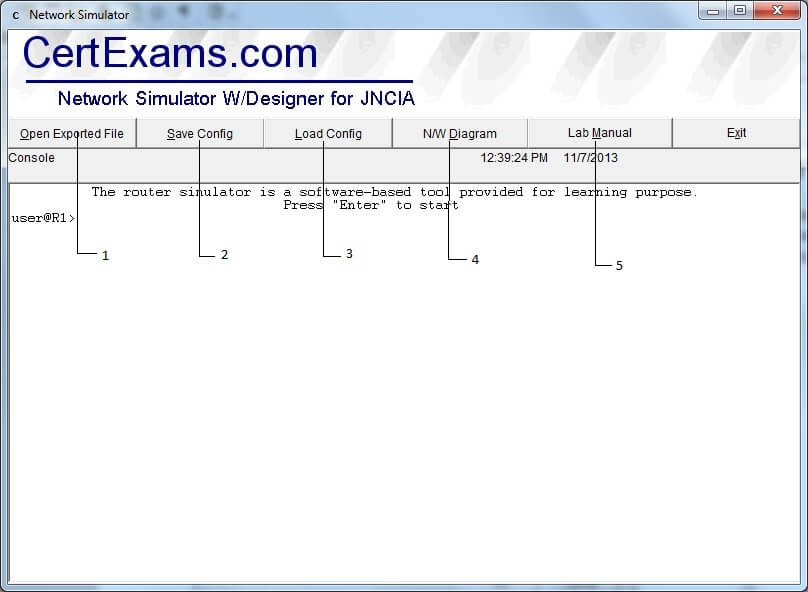
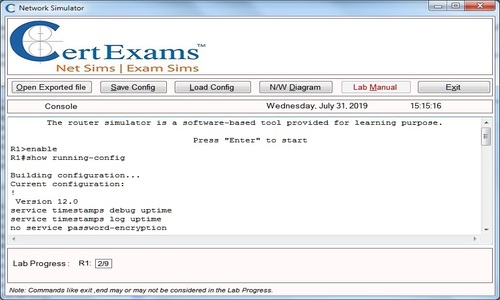
Screen-shot of the Network Simulator is given below:
Open Exported File: This button is used for
opening a file that was created using Network Designer
module.
Save Configuration: This button is used for saving the
network configuration for later use. On selecting this
button, you will be prompted for a filename under which the
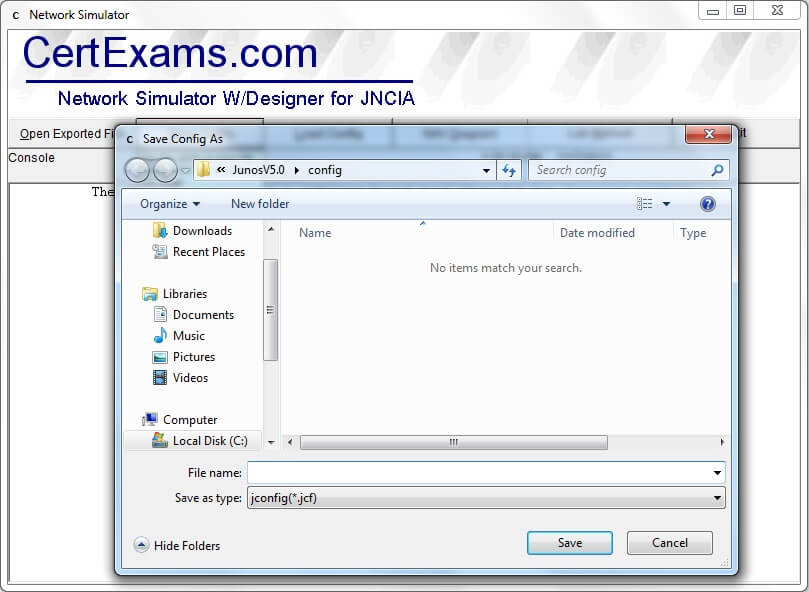
current configuration of the network has to be saved. The figure below shows the dialogue box used for saving
the current Configuration.
3. Load Configuration: This
button is used to open the saved Configuration file.
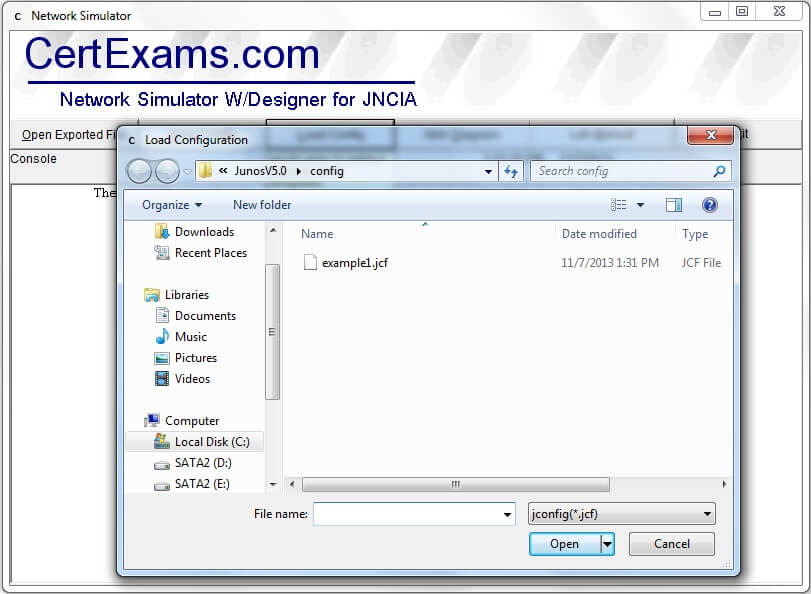
Below figure shows the
dialogue box for opening the Existing Configuration File.
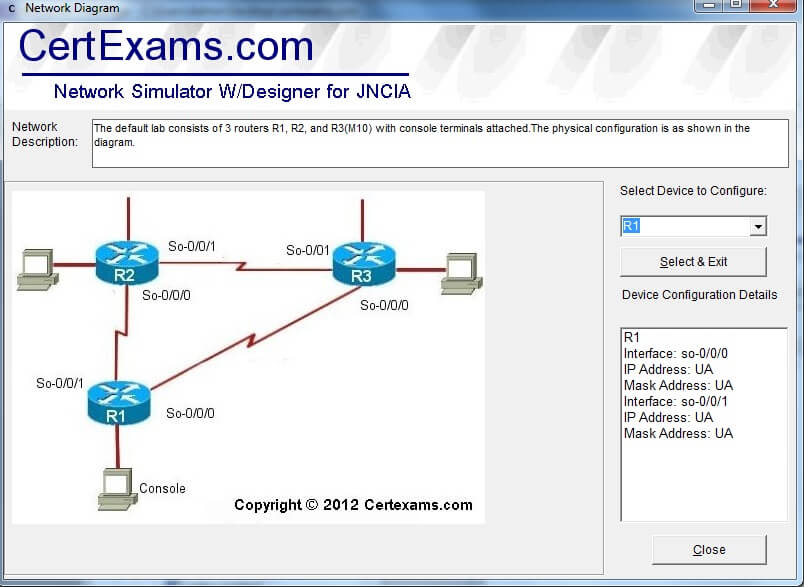
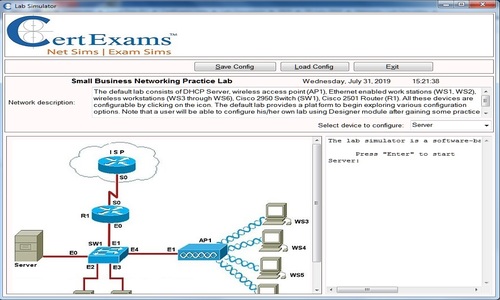
4. Network Diagram: Clicking
the N/W Diagram button displays the network diagram you are
currently working on.
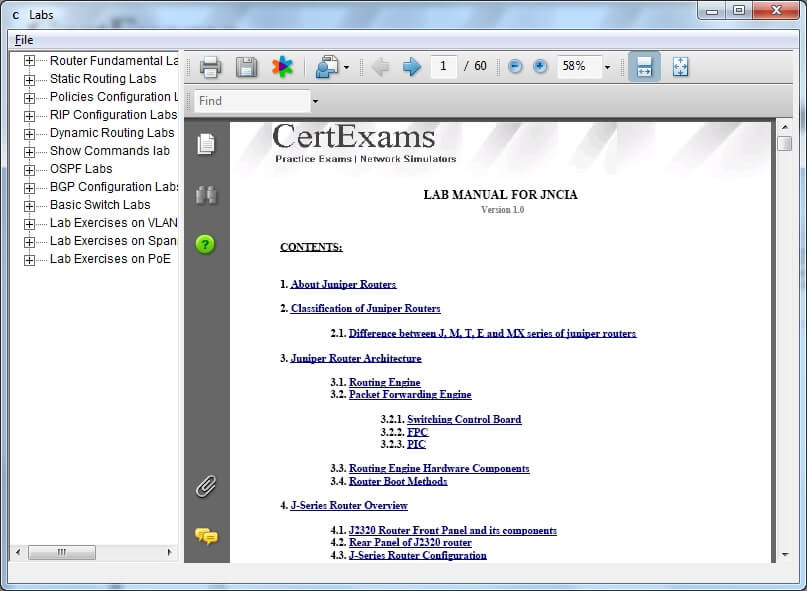
5. Lab Manual:
Certexams.com provides a detailed Lab manual with the
Network Simulator W/ Designer For JUNOS which contains
several lab Exercises with detailed explanations.
We use cookies to enhance your experience. By continuing to visit this site you agree to our use of cookies. More information