CertExams.com Simulator Lab Exercises Answers
Description : This lab exercise helps to understand the catalyst 2950 switch configuration and the various commands pertaining to switches.
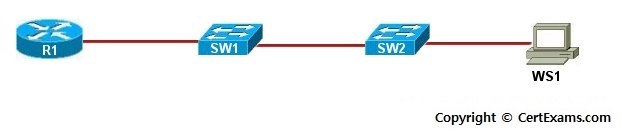
Instructions:
1. Enter into privileged mode of SW1 and enter ? which displays the commands available in privileged mode and type disable to go back to user mode
2. Enter into global configuration mode of SW1 and change its hostname to switch1 and issue show running-config command to view the active configuration
3. Enter copy run start command to save the active configuration into NVRAM and see the saved configuration in NVRAM with show startup-config command
4. Erase the saved configuration and reload
5. Enter into privileged mode and then into global configuration mode and reassign the host name, and enable password of cisco
6. Assign IP Address of 192.168.100.99 255.255.255.0 and a default-gateway of 192.168.100.1 (R1’s Ethernet Address) to SW1
7. Connect to SW2 and configure it with hostname switch2 and enable a password of cisco, assign it an IP Address of 192.168.100.100/24 and a default-gateway of 192.168.100.1 (R1’s Ethernet Address)
8. Issue show mac-address-table command to display which devices are attached to which switch ports
9. On SW2, permanently assign a device with MAC Address 2222.2222.2222 to port fa 0/4. Issue show mac-address-table command to verify that the device is in the table as a permanent entry
10. On SW2, configure port security for port fa 0/7. The switch will learn the MAC address of the device connected to port fa 0/7 and will allow only that device to connect to the port in future
Note: Please refer to the CertExams.com Network Simulator software for complete lab with commands.