CertExams.com Simulator Lab Exercises Answers
Description: This lab is to learn establishing a telnet session between two routers.
Instructions:
1. Configure R1 and then set the hostname to Router1. Use the command line vty 0 4 to access telnet lines
2. Configure the router to require the use of login and password
3. Configure cisco as the password that will be used to establish a telnet session
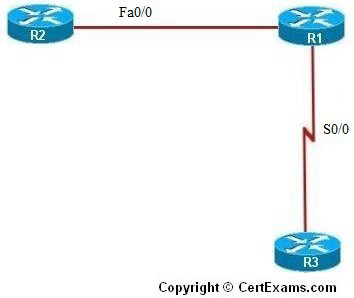
4. Now, assign the IP address of 192.168.100.2 255.255.255.0 to Router1’s fastethernet 0/0 interface, and enable the interface
5. Connect to R2 and set its host name to Router2 , then access its fastethernet 0/0 interface and assign its IP address to 192.168.100.1 255.255.255.0 and enable it
6. From Router2, telnet into Router1’s fastethernet 0/0 interface
7. A password will be prompted, enter the password as cisco, now the host name changes from Router2 to Router1 which indicates a telnet session has been established
8. Type the show sessions command on Router2 to view all the active telnet sessions
9. Type the command resume and type the number of session to resume, now the host name changes to Router1
10. Now go back to Router2 and disconnect the session using disconnect command
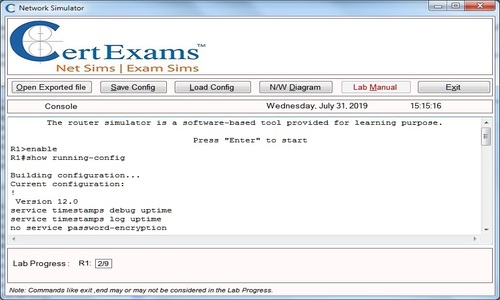
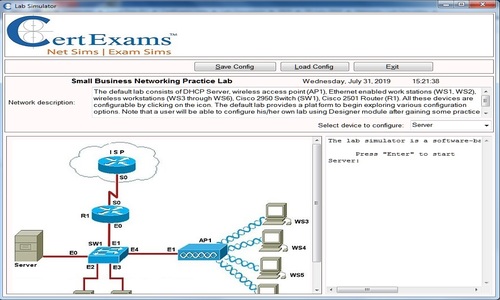
Note: Please refer to the CertExams.com Network Simulator software for complete lab with commands.