CertExams.com Simulator Lab Exercises Answers
Console Based :
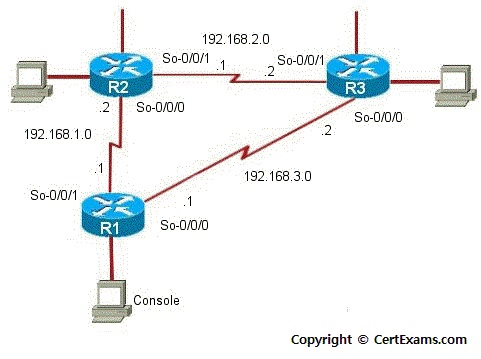
Description: The purpose of this Lab is to configure OSPF on all the devices with multiple areas including backbone (area 0) area and test for ping command..
Instructions:
1. Assign the IP address of all the devices as given below
| Device | Interface | IP Address | Mask |
| R1 | So-0/0/1 So-0/0/0 |
192.168.1.1 192.168.3.1 |
255.255.255.0 255.255.255.0 |
| R2 | So-0/0/0 So-0/0/1 |
192.168.1.2 192.168.2.1 |
255.255.255.0 255.255.255.0 |
| R3 | So-0/0/0 So-0/0/1 |
192.168.3.2 192.168.2.2 |
255.255.255.0 255.255.255.0 |
2. Enable OSPF on R1 with So-0/0/0 under area 0 and So-0/0/1 under area 10
3. Enable OSPF on R2 with So-0/0/0 under area 10 and So-0/0/1 under area 20
4. Enable OSPF on R3 with So-0/0/0 under area 0 and So-0/0/1 under area 20
5. From R1 issue a ping command to R2 and R3.
GUI Based :
Instructions:
1. Select device R1 from Select device drop down box
2. Click configure button to enable left navigation pane
3. Select Interfaces -> Interface Configuration from left Navigation pane. Interface Configuration screen appears select so-0/0/0 interface from available interface list and click Edit button.
4. Configure Interfaces screen appears enter the ip address and mask as per the above table and click OK button.
5. Select So-0/0/1 interface from available interface list and click edit button.
6. Repeat step 4 to assign ip address of So-0/0/1 interface
7. Select device R2 from Select device drop down box
8. Repeat steps 2-4 to assign ip addresses to so-0/0/0 and so-0/0/1 interface of R2
9. Select device R3 from Select device drop down box
10. Repeat steps 2-4 to assign ip addresses to so-0/0/0 and so-0/0/1 interface of R3
11. To enable OSPF routing on the devices select R1 from Select Device drop down box
12. Click configure button and select Routing > OSPF from left navigation pane.
13. OSPF configuration screen appears enter area 0 in Area ID field and select so-0/0/0 from select interface drop down box and click Add button.
14. Change area id to 10 and select so-0/0/1 from select interface drop down box and click Add button and then click OK button.
Note: Please refer to the CertExams.com Juniper Network Simulator software for complete lab with GUI Interface.